SVN
Using SVN with the Textmate Bundle:
You still need to perform the initial check out of any files that you wish to work with. That is done on the command line using the following command:
svn --username your.name.here checkout repository.url.here
which for us is
svn --username jbrumley checkout https://rt-svn.uits.indiana.edu/wcmsmanagertools/
Once you have the top-level repository folder checked out, just drag it onto TextMate to create a "project". Because this project is a subversion checkout you will have access to the subversion commands2 for the files and directories contained within.
The keystroke to show those commands is
⌃ ⇧ A control + shift + A .
2 If Textmate can't find your SVN installation set the environment variable TM_SVN to the path of the executable.
SVNMate
original file and post found here http://ciaranwal.sh/2007/11/29/svnmate-update
This update re-checks the SVN status of files when TextMate regains focus (to keep in-sync with commits etc. made on the command-line), and also replaces the ugly coloured triangles:
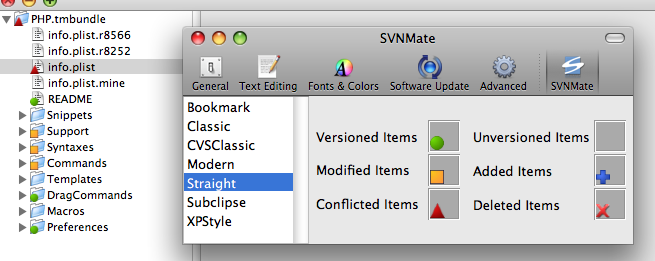
I’ve been on the lookout for some nice icons for a while, but I recently found out that the Windows TortoiseSVN project has generously put their icons under a separate license.
The download includes all the icons from the TortoiseSVN repository and one contributed by JiHO – he’s also included the SVG source file which you can modify with Inkscape.
If you wish to create your own icon set, take a look at the existing sets (found at ~/Library/Application Support/TextMate/PlugIns/SVNMate.tmplugin/Contents/Resources/icons once the plug-in is installed). Any common image format should be loaded if the files have the proper name and extension.
Here is my local copy SVNMate zip file (downloads immediately)