Laravel
PhpStorm Tips and Tricks
PhpStorm is my code editor of choice and it’s robust. Almost to powerful because it has an immense set of features and settings. I wanted to show you some of the tips and tricks I have learned over the past few months and my workflow.
Keymap
PhpStorm allows you to rebind every keybinding and even add bindings to features that are not mapped. This means you can set it up to perfectly match your existing workflow, and if moving from another editor you will feel right at home with just a few minutes of setup time.
Way back in 2001 is when I first started down the rabbit hole of web development. Since that time I’ve used a handful of primary editors with Sublime being the latest. I am so accustomed to it that I duplicated Sublimes keybindings to PhpStorm. Here is a full list of all my customized keys:
- Command-p - Search Everywhere
- Command-r - Methods in file
- Alt-Command-p - Switch Projects
- Command-3 - Open the integrated terminal
As you can see I didn’t customize a lot, just made it more comfortable.
Preferences
The preferences are vast, you can customize so much that it’s impossible to cover everything. Here are the custom changes I settled on:
- Coming from Sublime Text a major feature I used was selecting a word and hitting a single quote or double quote to surround the selected text. PhpStorm enables this from the Preferences -> IDE -> Editor -> Smart Keys -> Surround Selection on typing quote or brace.
- Preferences -> IDE -> Editor -> Appearance -> Show method separators. This puts a line between methods to give them a more blocky feel. Reminds me of my old CodeIgniter days and its docblocks.
- Preferences -> IDE -> Editor -> Auto Import. I checked all these which will convert a full namespaces into use statements. For example typing: \Shopping\Payment\Gateway moves this into a use \Shopping\Payment\Gateway statement and leaves Gateway at the caret position. This makes the code feel cleaner to me.
- Setup Laravel live templates. Koomai keeps adding useful templates and pressing CMD+J will show the popup that you can easily search for what you are looking for.
Improving the workflow
My current workflow is I open my project, launch the integrated terminal and run grunt watch. Next hide the terminal and start my day coding. I use the built-in VCS operations and I have tasks setup to pull issues from GitHub and Trello cards. From here it's just basic operations. Open files, search, find usages, and go to declaration. Here is the list of features I use the most (Help -> Productivity Guide):
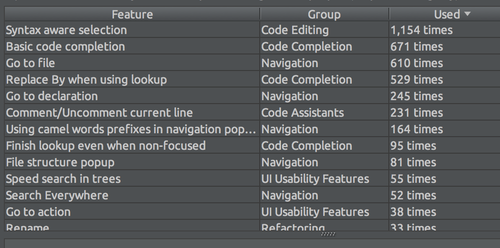
Now that I have a few months of using it under my belt I'm ready to go to the next level. But the question I always have is what do I want? What would improve my personal workflow? What is the name of the option I’m looking for? Nine times out of ten PhpStorm has it, but I struggle articulating what I'm looking for to find it in the docs.
To help me improve and find some power features I decided to ask on Twitter and had some great responses that I'm going to share here:
- Select code in a method then hit ALT+CMD+M to create a new method from selection.
- You can create an interface from any class. Refactor -> Extract -> Interface
Command/Control+Shift+Backspace. This will take you to your last edit point.
- Press Ctrl+Alt+L to reformat the code.
- Use 'Source code Pro' font it's looks great.
- Use 'Key Promoter' plugin to get reminder of keyboard shortcuts
Double press "Shift" brings up a global search. Very useful.
There are a few that I have found super useful so far.
- CMD+SHIFT+A - Find Action... It's similar to CMD+SHIFT+P in Sublime. Allows you to search for functionality in the editor.
- SHIFT+SHIFT - Search Everywhere - A beefier version of Sublime's CMD+P
- Setup your coding standards in Preferences > Code Style. Then when in a file, hit CMD+OPT+L to format the whole file, or selected code, to those standards. I still miss Sublime's Abacus plugin, since PhpStorm isn't as good as aligning variable signs, but it works well enough.
- CTRL+OPT+I - Auto-indent Lines. - Doesn't tweak your coding style, just properly indents the code you have typed.
The remote bash commands are really useful. I have one set up with a key command that will start behat tests on a VM or remote machine of the feature file that's currently in focus prompting you for additional params!
If your cursor is on a function or class name, hit command+B to jump to its declaration.
These are some great tips and I find it interesting how much different everyones workflow is. For me what made me switch to PhpStorm in the first place was not the PHP support. It was the CSS, HTML, JavaScript, and CoffeeScript. I love the CSS autocomplete, the showing applied styles, and the refactoring. These are powerful features you can’t get outside of an IDE.